How to add Primcard toApple Pay & Google Pay
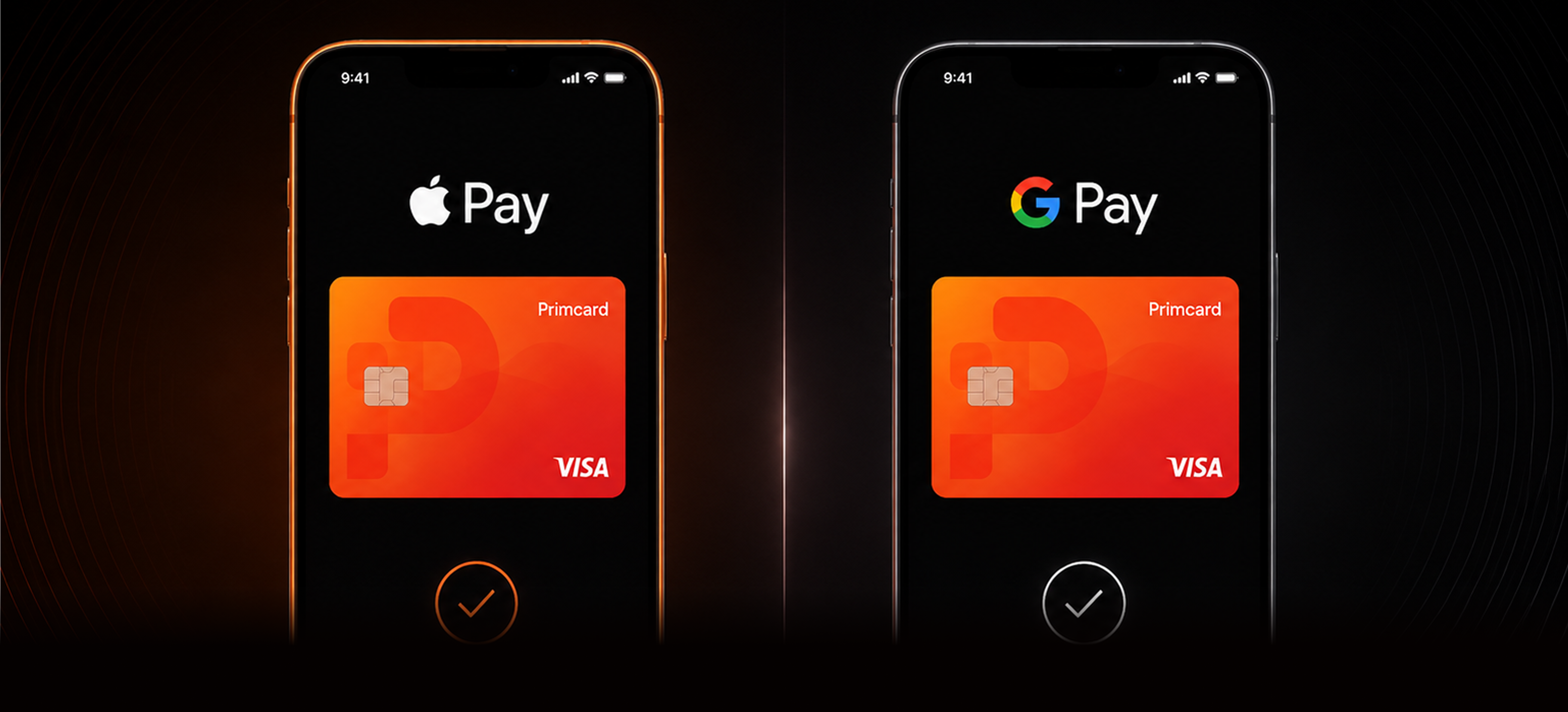
The email address and phone number shown during wallet verification are programme-managed details. They are not your personal contact details. Always choose Email when asked where to send the verification code.
Step-by-step setup
Open your Primcard dashboard
Log in to Primcard and open the Cards section. Select the card you want to add to your wallet.
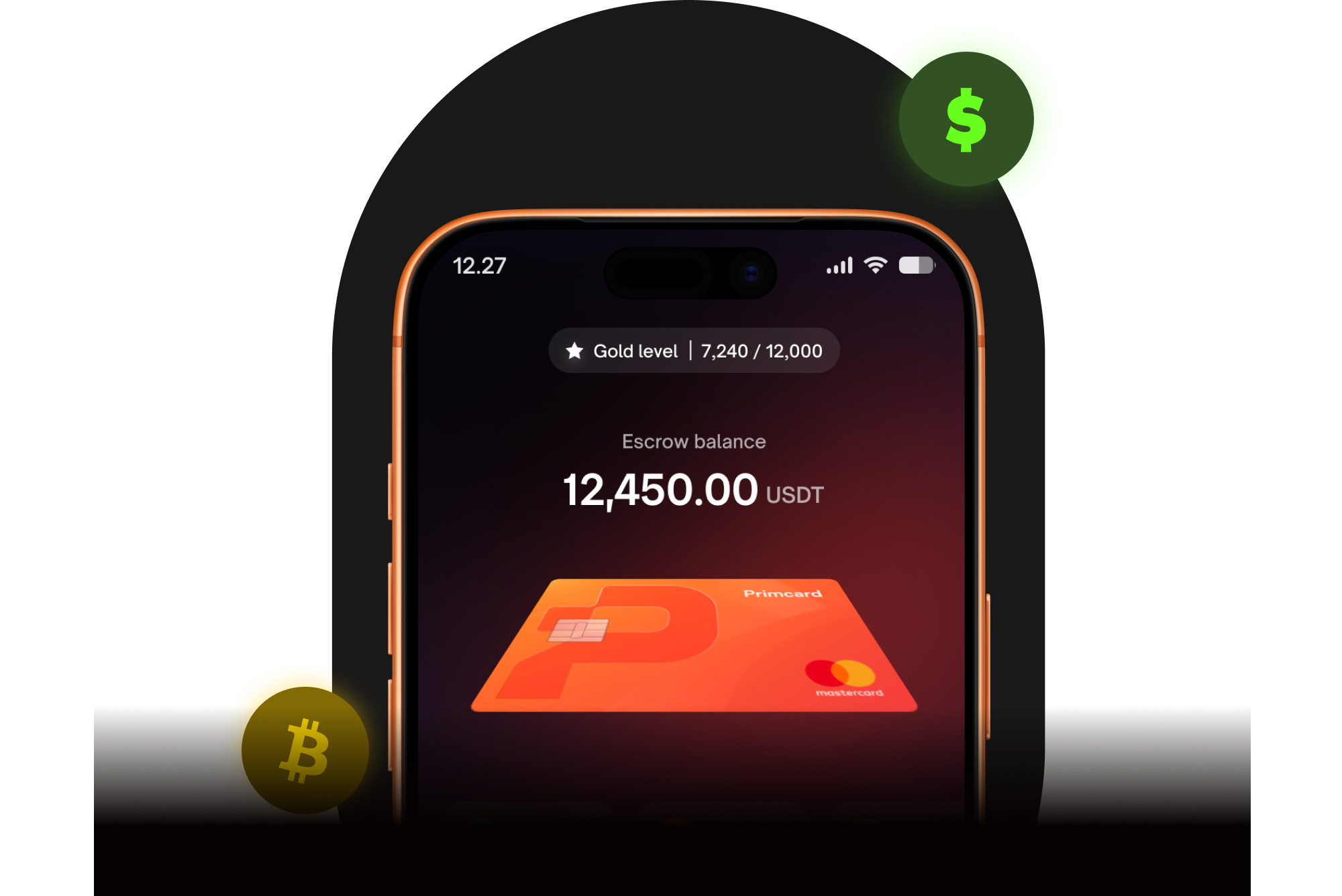
Reveal your card details
Tap Show card details and have your card number, expiry date and CVV ready.
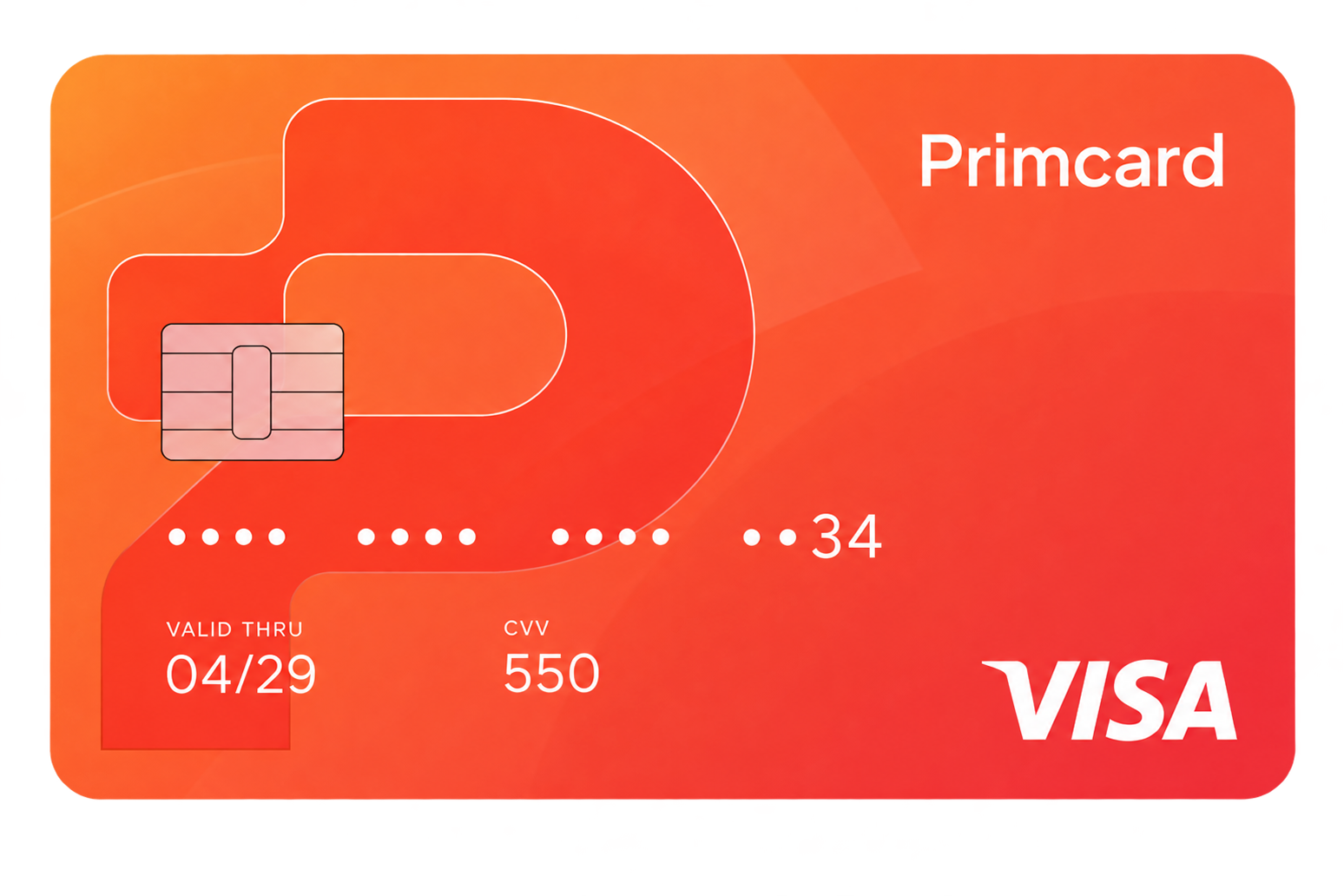
Add the card on your phone
Choose your platform and open your device wallet.
Apple PayOpen Apple Wallet, tap +, select Debit or Credit Card. Then choose Enter Card Details Manually.
Google PayOpen Google Wallet, tap Add to Wallet, select Payment card, then New credit or debit card. Choose Enter details manually.
Enter your Primcard details
Enter your card number, expiry date and CVV exactly as shown in your Primcard dashboard.
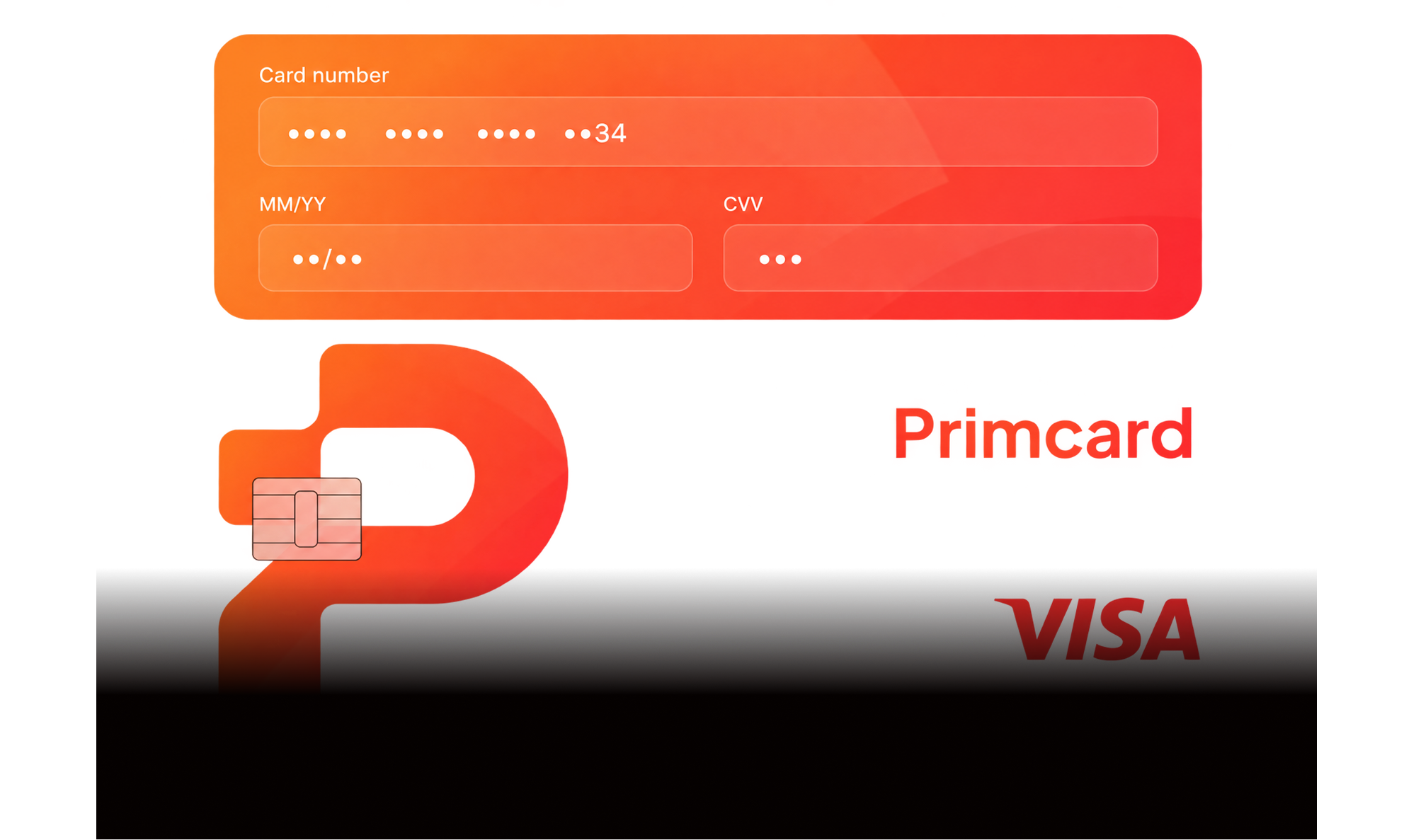
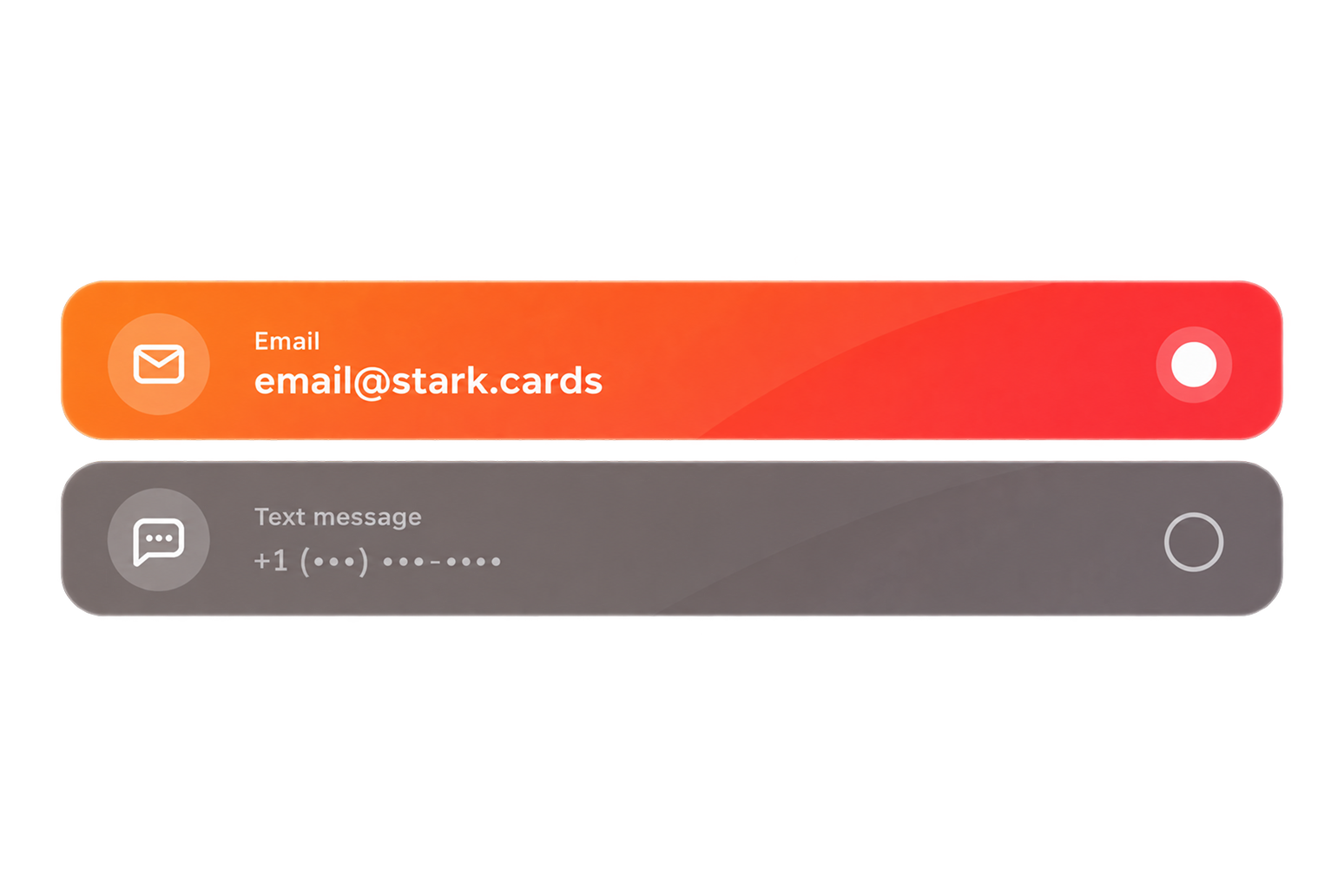
Choose Email for verification
When asked how you want to receive the verification code, select Email. Do not select the telephone number shown.
Return to Primcard
Go back to Primcard, open the same card and tap Get verification code.
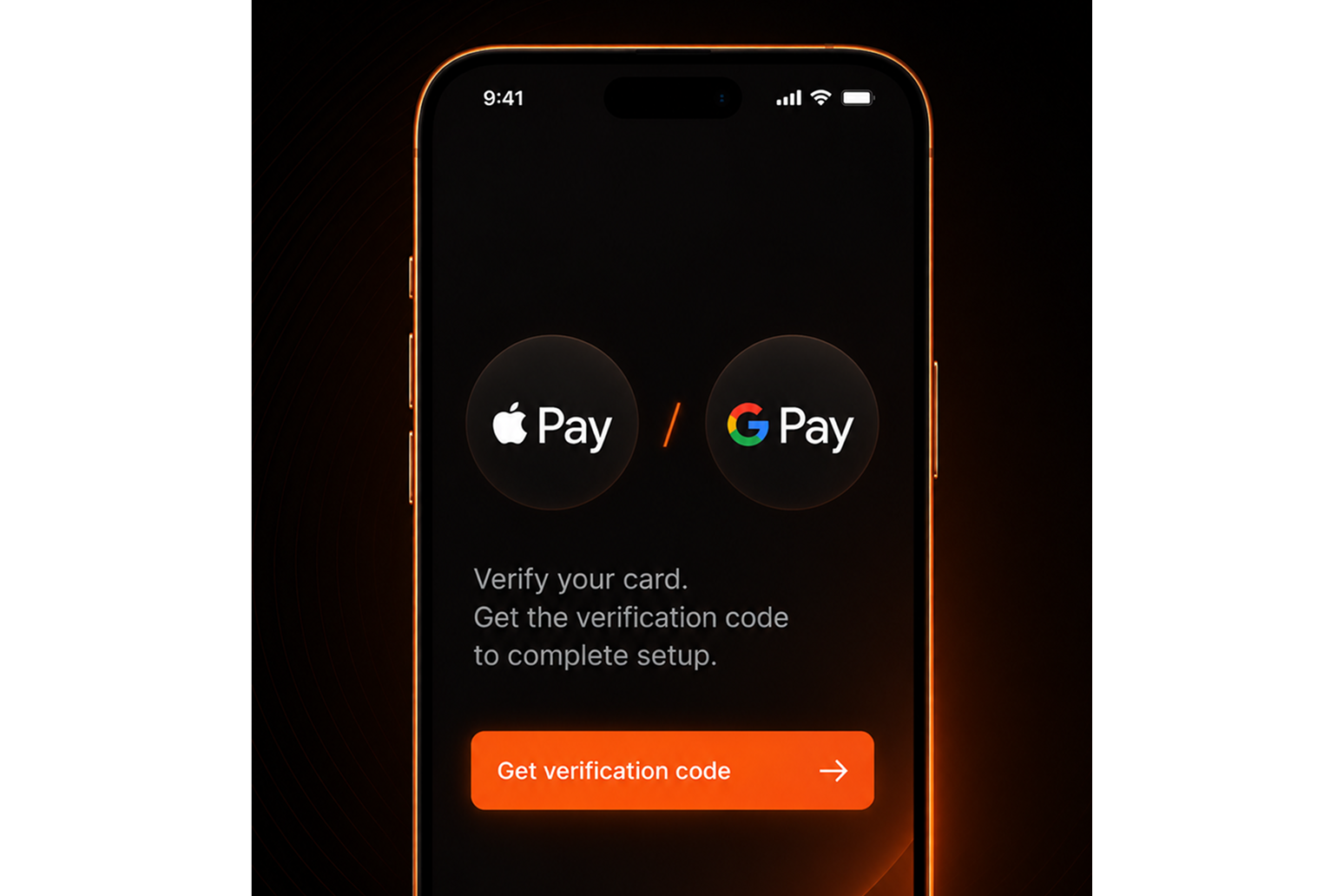
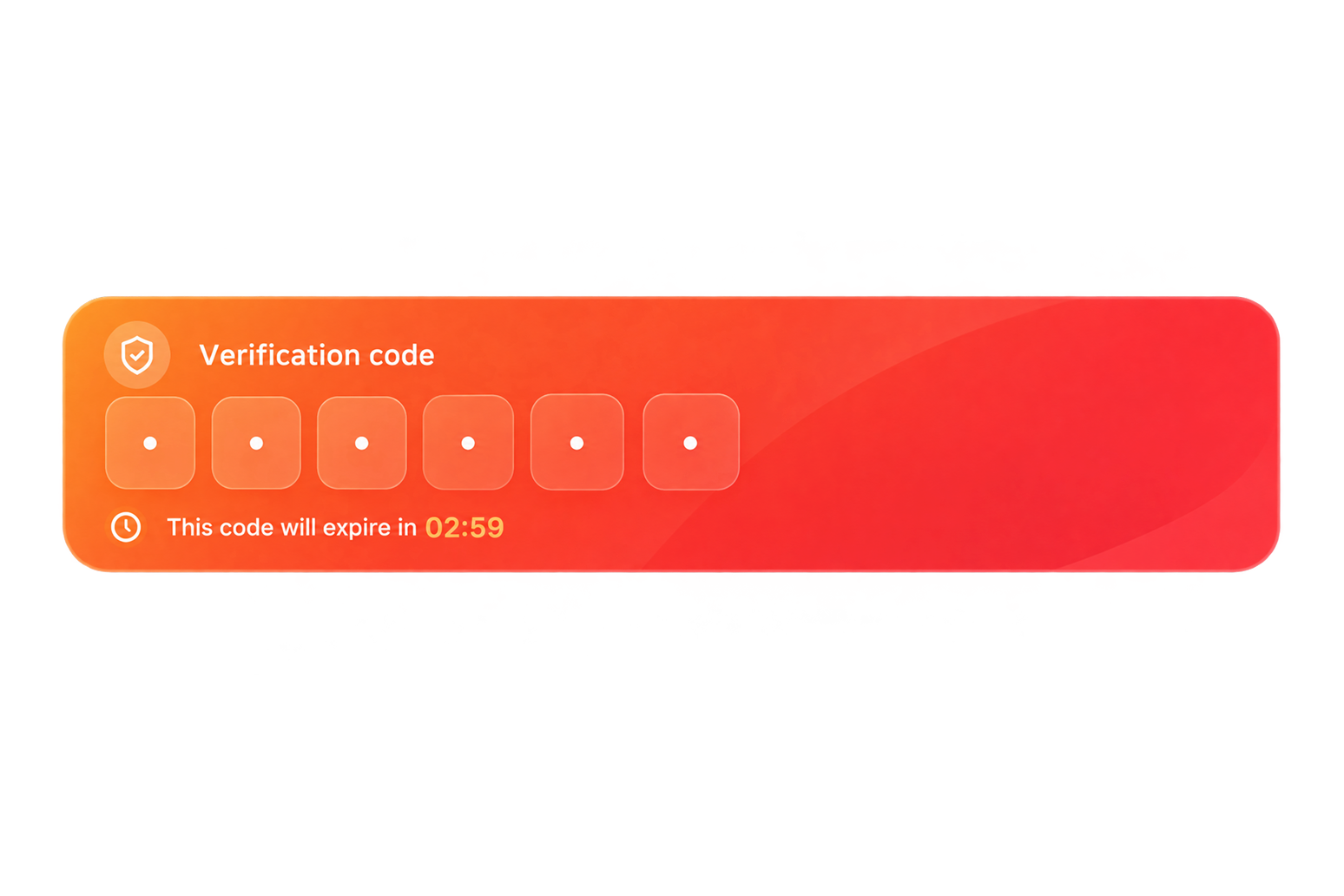
Get your OTP
Your one-time password (OTP) will appear here. Copy the code.
Complete verification on your phone
Return to Apple Wallet or Google Wallet and enter the OTP to complete verification.
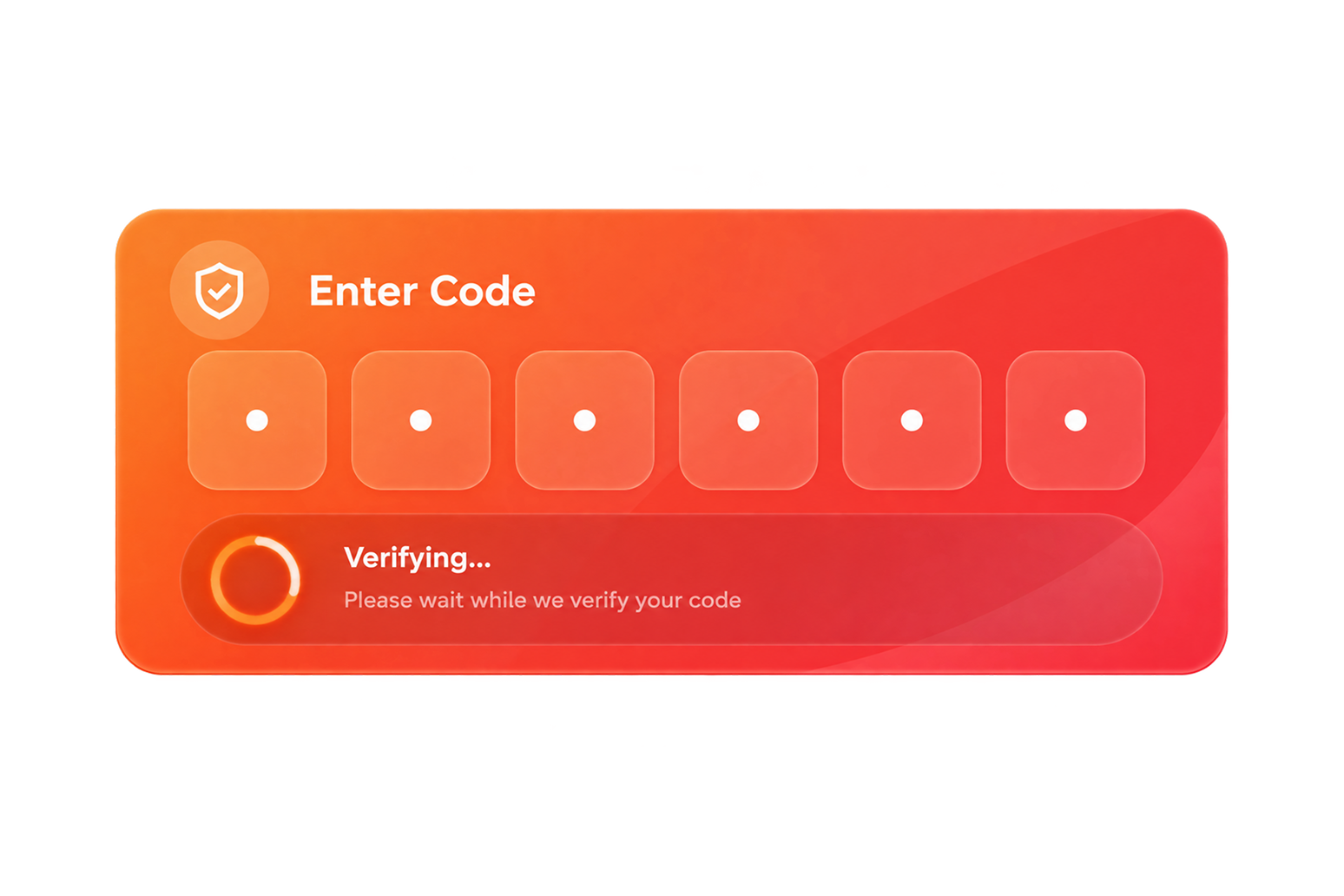
You're all set!
Your Primcard is now added to Apple Pay or Google Pay and is ready to use.
Important to know
Secure verification
OTP verification is required by Apple Pay and Google Pay to keep your card and payments secure.
Why Email?
Selecting Email ensures the OTP is routed to Primcard, where you can retrieve it securely.
Not your contacts
The email address and phone number shown during verification are not your personal details.
Need to verify again?
If verification fails or times out, start the process again and get a new code from Primcard.
Still need help?
Can I add Primcard to Apple Pay or Google Pay?
Where supported for your card, device and region, you can manually add your Primcard to Apple Pay or Google Pay.
During the process, you may be asked to verify the card using a one-time password, or OTP.
Why do I see an email address or telephone number that isn't mine?
This is expected.
When manually adding your Primcard to Apple Pay or Google Pay, the wallet may display an email address and telephone number that are not your personal contact details.
These are programme-managed verification details associated with the card. You do not need access to the displayed email account yourself because the OTP is routed to Primcard and can be retrieved from your card dashboard.
Why should I select Email instead of the telephone number?
The telephone number displayed during mobile wallet verification is a programme-managed number. It is not your personal mobile number.
Selecting Email allows the OTP to be routed to Primcard so that you can retrieve it from your card dashboard.
Will the OTP be sent to my personal email or phone?
No. You should not wait for the OTP to arrive in your personal email inbox or by SMS to your personal telephone number.
Select Email during the Apple Pay or Google Pay verification process and then return to Primcard to retrieve the OTP.
What if I accidentally select the telephone number for the OTP?
You will not receive the verification SMS on your personal phone.
Return to the verification options in Apple Pay or Google Pay, select Email and then return to Primcard to retrieve the OTP using Get verification code.
More questions? Browse all Apple Pay & Google Pay answers or the full FAQ.